Search Transcripts Across Sessions
The Transcript page offers keyword searches across all available transcripts, including rough and certified versions. Results display Session Review links, speaker names, highlighted excerpts, and timestamps for quick navigation to relevant content. Organization users can search all transcripts associated with their Organization, including Sessions they did not attend.
Search Behavior and Matching
Transcript search is case-insensitive, treating all letters as lowercase. When you search for a single word, results will include both exact matches and partial matches. For example, searching for test may return test, testimony, testify, or testified.
If you type multiple words without quotation marks, the search returns results that include at least one of the words. For example, searching for under oath may return the complete phrase under oath, separate mentions of under and oath, or entries with partial matches such as oaths or underwriting.
To search only for exact matches, place the word or phrase inside quotation marks. For example, searching for "underwriting" will only return the exact matching word and will not include related forms such as under or underwriter. Placing phrases in quotes returns results where the words appear together, in that order, without other words in between. For example, searching for "under oath" only returns results with the exact phrase under oath.
Symbols, including &, |, and !, and wildcards such as *, %, and _ are not supported.
Search Your Transcripts
Use the Transcripts page to search across all available transcripts, including rough and certified versions, by entering a keyword in the Search box. Matching results include the Session Review link, the speaker’s name, a highlighted excerpt of the transcript content, and a timestamp range of the first and last appearance of the search term.
Select the Session link to open Session Review at the first mention of the term, where you can read the full transcript, replay audio, create video clips, flag lines, or download the transcript. To search transcripts of Sessions held on the Legacy version of the Sessions application, select the Legacy Transcript tab at the top of the page.
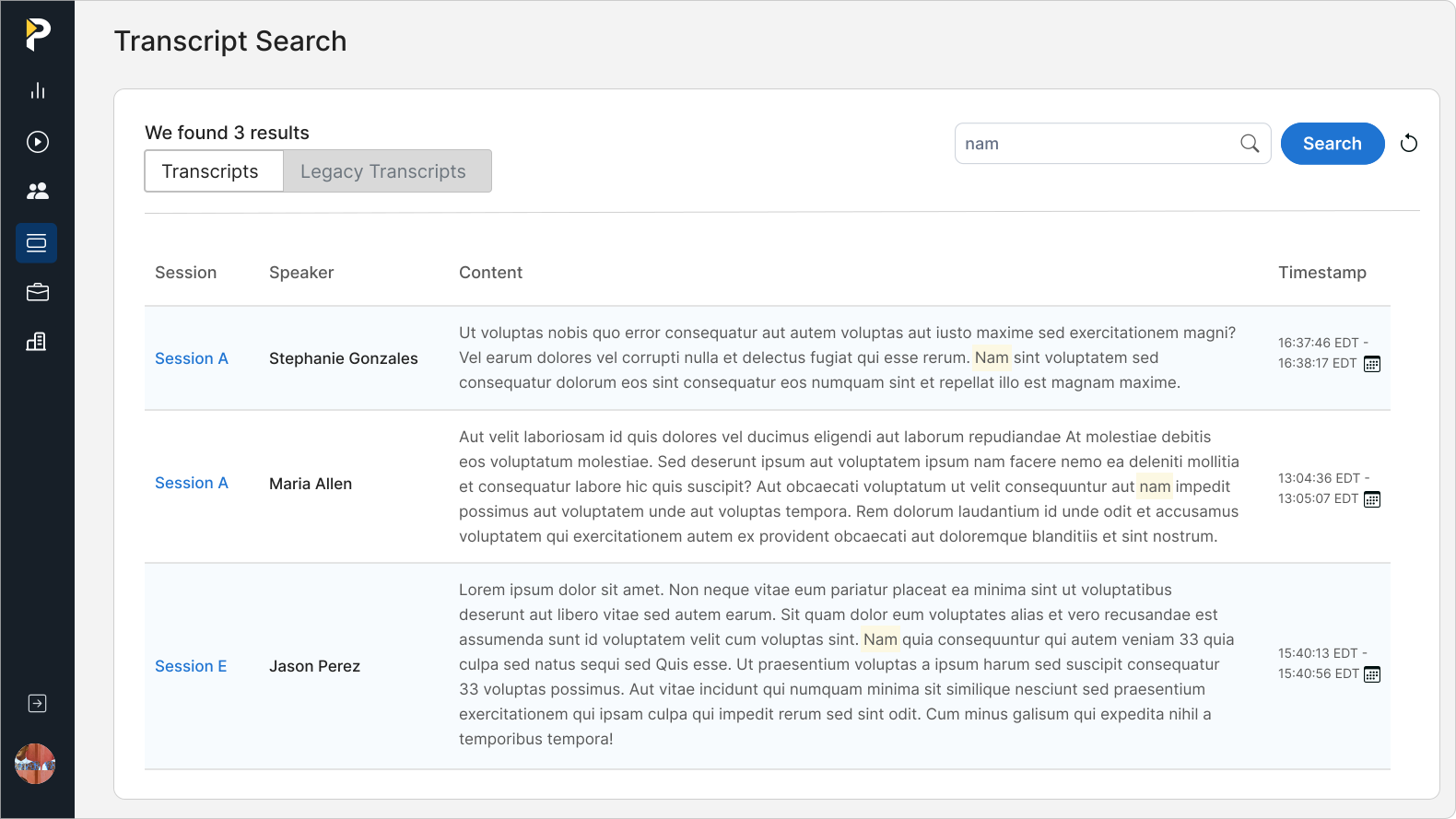
- On the Navigation menu, click Transcripts.
- In the Search box, type a search term.
- Click Search.
Results are listed with the matching term highlighted in yellow.
- Optional: To visit the Session Review page for a given result, in the Session column, click the Session title.