Order or Download Transcripts
The Session Review page provides options to order and download transcripts. The rough transcript is available to all users for immediate download, while certified and reviewed copies can be ordered and downloaded once processed. You can access all transcript options from the Transcripts tab located below the Session video.
Place a Transcript Order
Certified and reviewed transcripts are available for order to all users. You can place orders, check order status, modify your order, and download processed transcripts from the Transcripts tab. Orders are limited to either the certified or reviewed format until processing is complete to prevent accidental orders.
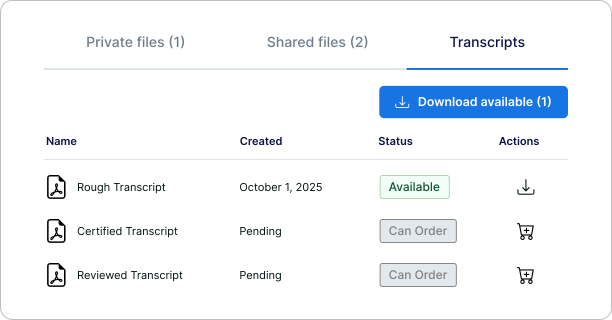
Order Options
Standard delivery orders can be updated to expedited delivery at any time. Certified transcript orders can also be updated to include synchronized video.
Expedited Orders
Certified and reviewed transcripts are delivered within seven business days unless expedited. For faster delivery, select the expedited option and choose a delivery date between three and six business days from the order date.
Synchronized Video for Certified Transcript Orders
Synchronized video is a set of files created by our transcription team that combines the Session video recording with the transcript text. Using Trial Director software, we create files that contain precise time stamps linking each line of testimony to its corresponding moment in the video. When ordering a certified transcript, select the synchronized video option to add these files to your order.
Order a Certified Transcript
A Certified transcript is legally authenticated and reviewed by professional Scopists to ensure 100% accuracy. Certified transcripts are delivered in three different file formats, including ASCII, PTX, and condensed PDF.
After you submit a request, you will receive a confirmation email, and Prevail Staff will follow up with you directly. Once your order is complete, you will receive an email from Prevail containing the transcript, which will also be available for download from the Session Review page.
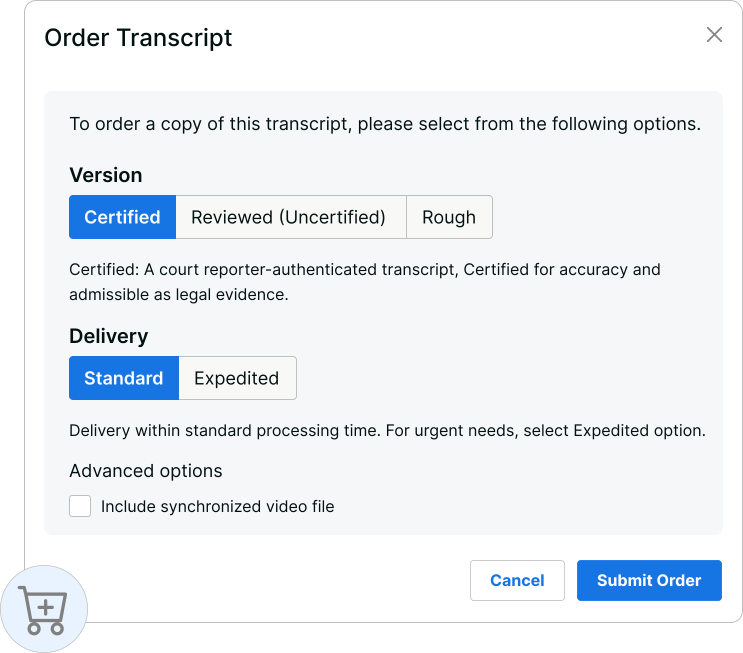
- Below the Session video, click the Transcripts tab.
- In the Certified Transcript row, in the Actions column, click the Shopping Cart icon.
- In the Delivery group, select a delivery date...
- For standard delivery within 7 business days, select Standard.
- For expedited delivery, select Expedited.
- Click the Calendar box and select a date.
- Optional: To add the synchronized video file to your order, select Include synchronized video file.
- Click Submit Order.
Order a Reviewed Transcript
A Reviewed transcript is the professionally reviewed and edited version of the rough transcript in PDF or text format. After you submit a request, you will receive a confirmation email, and Prevail Staff will follow up with you directly. Once your order is complete, you will receive an email from Prevail containing the transcript, which will also be available for download from the Session Review page.
- Below the Session video, click the Transcripts tab.
- In the Reviewed Transcript row, in the Actions column, click the Shopping Cart icon.
- In the Delivery group, select a delivery date...
- For standard delivery within 7 business days, select Standard.
- For expedited delivery, select Expedited.
- Click the Calendar box and select a date.
- Click Submit Order.
Modify Your Order
Modify your certified or reviewed transcript order by requesting expedited delivery or adding synchronized video. You can access the order modification options by selecting Order Processing located at the top-right on the Session Review page.
- At the top right of the page, click Order Processing.
- Click the Modify Order tab.
- Make changes to your existing order...
- To expedite your order, click Expedited.
- Click the Calendar box and select a date.
- For certified transcript orders: to add the synchronized video file to your order, select include synchronized video file.
- To expedite your order, click Expedited.
- Click Update Order.
Your order is updated.
Download Available Transcripts
Completed transcript orders and any associated files are available for download from the Session Review page. The rough transcript is immediately available for download after each Session.
Download the Rough Transcript
The rough transcript is immediately available to all users in either PDF or text format. The PDF version is formatted with page and line numbers, while the text version allows you to choose from multiple formatting options. The PDF template download option is available to Organizations that have configured custom templates. When downloading, you can select from any templates your Organization has added.
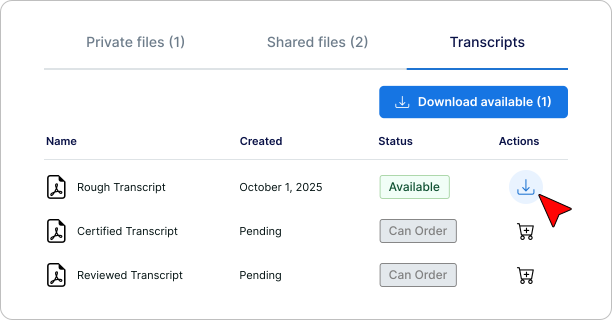
- Below the Session video, click the Transcripts tab.
- In the Rough Transcript row, in the Actions column, click the Download icon.
- In the File Type group, select a transcript format...
- To download a PDF formatted copy...
- Select PDF.
- If available for your Organization, in the Apply template drop-down, select a PDF template.
- To download a text formatted copy, select TXT.
- In the Formatting Options drop-down, select a transcript format.
- To download a PDF formatted copy...
- Click Download Now.
The file is saved to your Downloads folder.
| Formatting Option | Description | Example |
|---|---|---|
| Page Numbers & Timestamps | The "Unofficial Use" disclaimer appears with the page number and time stamp within each page break | [Page 1 - 5:33 PM EDT - Unofficial - Internal Use Only] |
| Line Numbers |
| 25 Unofficial - Internal Use Only 1 2 |
| Plain - Without Page Numbers & Timestamps | Page numbers, line numbers, and the Unofficial Use disclaimer are excluded |
Download a Certified or Reviewed Transcript
When your transcript order is complete, you will receive an email from Prevail with the download option. You can also download your transcript and any related files directly from Session Review.
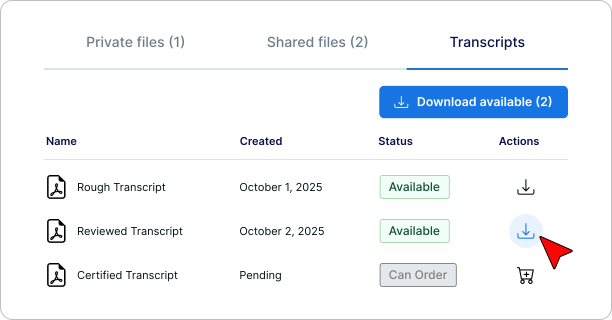
- Below the Session video, click the Transcripts tab.
The Status column displays Available for each file that is available for download.
- In the Actions column, click the Download icon.
- Click Download.
The file is saved to your Downloads folder.