Ask CheckMate
During a live Session, use CheckMate to query connected AI models from the CheckMate panel. CheckMate supports document search, which automatically searches your uploaded files for relevant content as part of the query. You can continue conversations beyond the initial query using native threads in the CheckMate Chat tab.
Prevail CheckMate
CheckMate is Prevail’s AI integration for Sessions. Use CheckMate to query connected AI models, search your uploaded documents, and ask general questions during a live Session. For a full overview, see Prevail CheckMate.
CheckMate Document Search
CheckMate automatically searches your files when you query a connection. If matching files are found, the response includes relevant passages and file names as clickable links. If you’re using the Prevail Native Solution, upload files to the My Files folder in your Prevail Briefcase. For supported providers, upload your files to the appropriate location. For more information, see CheckMate Document Search.
AI Models
All Prevail members have access to the built-in Prevail Native Solution. For a full list of supported providers and connection types, see AI Models.
Set Up Connections
Add connections to supported AI providers using your personal account, or use shared connections configured by your Organization administrator. For setup instructions, see Set Up LLM Connections.
Ask AI
Use CheckMate to query a connected AI model from the CheckMate panel during a Session. CheckMate can answer general questions, search your files, and support continued conversations through CheckMate Chat.
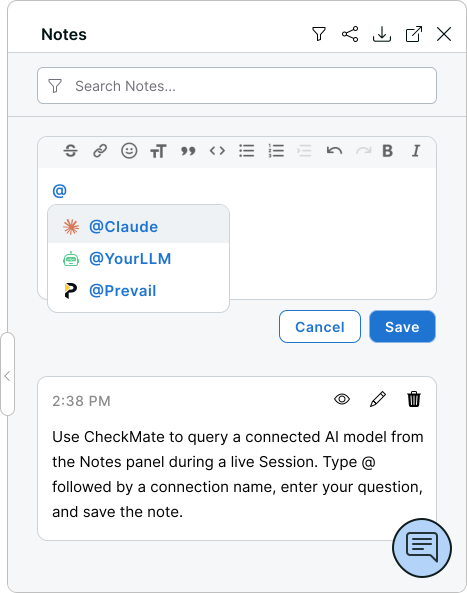
- On the Session Toolbar, click the CheckMate icon.
- In the CheckMate panel, in the Enter your note... box, type the @ symbol.
A menu appears with your available connections.
- To select an AI model, click the connection name.
You can also use the Up Arrow and Down Arrow keys to move through AI model options, and press Enter to make a selection.
- Type a question in the box.
If using the Prevail Native Solution or a connection configured with a document endpoint, you can instruct the AI to perform a document search to include information from relevant documents.
- Click Save.
You can also save a note by pressing Ctrl + Enter (Cmd + Enter on Mac), or by pressing Tab twice and then pressing Enter.
- To view the response, click Show 1 response
The response appears in the CheckMate panel.
Continue the Conversation
After you receive a response in the CheckMate panel, you can continue the conversation in CheckMate Chat. For more information, see CheckMate Chat.
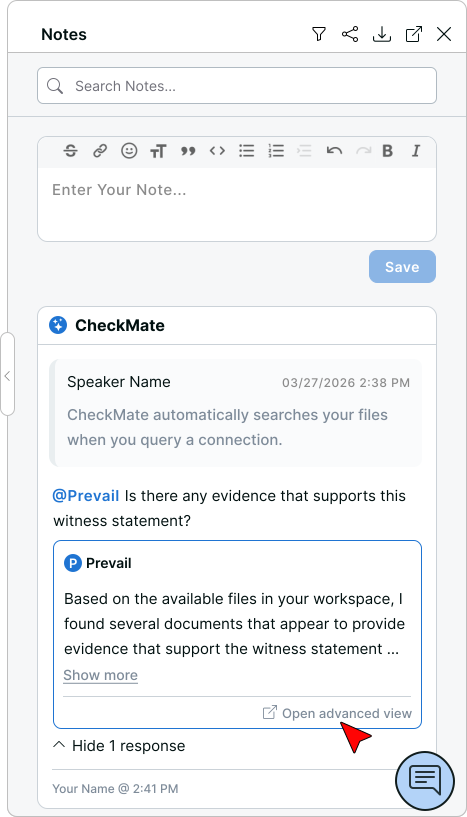
- Ask AI and view the response.
- In the AI response, click Open advanced view
The CheckMate chat opens in a new browser tab.
- In the Type your message... box, type a message and click the Up Arrow icon.
You can also send your prompt by pressing Ctrl + Enter (Cmd + Enter on Mac).
Export CheckMate Notes
Export your CheckMate notes to a text file at any time before the Session ends. The export includes your note text and any shared CheckMate notes from other participants, but does not include AI model responses or CheckMate Chat conversations.
Share CheckMate Notes
Share CheckMate notes with Organizations or individual members who are active Session participants. Shared CheckMate notes do not include CheckMate Chat conversations.