Add Session Notes
Add notes directly to the AI transcript in the AI Rough panel during live proceedings. Notes can be attached to one or more speaker segments. All notes also appear in the Notes panel, where they can be exported or shared with other participants. To use Prevail CheckMate to query AI connections during a Session, ask AI from the Notes panel.
Add Notes
Add notes by selecting one or more speaker segments and then selecting the Note option. Notes added to the AI Transcript appear in the margin, each represented as a Note icon. All notes are timestamped and appear in the Notes panel in chronological order according to when they were created. After the Session ends, your copy of the transcript containing your notes is available in Session Review.
You can open the AI Rough panel from the Notes panel to view both panels side-by-side.

- On the Session Toolbar, click the AI Rough icon.
- In the AI Rough panel, select one or more speaker segments…
- To select a single speaker segment, click on a speaker segment.
- To select multiple segments, press and hold Ctrl as you click.
- To select a group of speaker segments, click the first segment, then press and hold Shift as you click the last segment.
- Click Note.
The Add to Notes window opens.
- In the box, type a note.
- Click Save.
The note appears in the Notes panel and in the AI Transcript margin as a Note icon.
Ask AI
Query a connected AI model from the AI Rough panel using CheckMate. Type @ followed by a connection name, enter your question, and save the note. The AI response appears in the CheckMate panel.
Enhancements are in progress to notify you when a response is ready in the CheckMate panel and to allow you to customize the default prompt options.
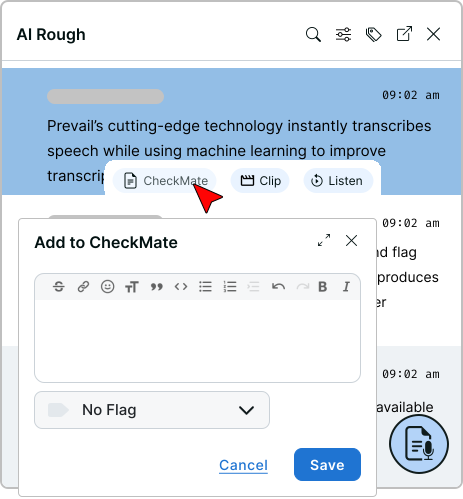
- On the Session Toolbar, click the AI Rough icon.
- In the AI Rough panel, select one or more speaker segments…
- To select a single speaker segment, click on a speaker segment.
- To select multiple segments, press and hold Ctrl as you click.
- To select a group of speaker segments, click the first segment, then press and hold Shift as you click the last segment.
- Click CheckMate.
The Add to CheckMate window opens.
- In the box, type the @ symbol.
A menu appears with your available connections.
- To select an AI model, click the connection name.
You can also use the Up Arrow and Down Arrow keys to move through AI model options, and press Enter to make a selection.
- Type a question, then click Save.
You can also select Find docs that support this fact statement or Find docs that refute this fact statement to insert the prompt automatically.
- Open the CheckMate panel to view the note and the AI response.
Edit Notes
Edit notes in the Notes panel or the AI Rough panel. To edit a note in the AI Rough panel, select the Note icon to view editing options.
- On the Session Toolbar, click the AI Rough icon.
- In the left margin of the AI Transcript, click the Note icon.
The Add to Notes window opens.
- In the text box, make your edits.
- Click Save.