Add and Manage Notes
The Prevail Sessions application allows you to take personal notes during live Sessions. All notes are timestamped and appear in the Notes panel in chronological order according to when they were created. Notes added in the Notes panel are stand-alone and not attached to speaker segments. The Notes panel provides options to edit, export, share, and filter your notes. You can also expand the Notes panel into a separate browser tab for clearer viewing.
You can also add notes in the AI Rough panel. Use the AI Rough panel to attach notes to one or more speaker segments. To use Prevail CheckMate to query AI connections during a Session, ask AI from the Notes panel.
- View The AI Transcript and Notes Side-by-Side
- Add Notes
- Edit Notes
- Search and Filter Notes
- Export Notes
- Share Notes
View The AI Transcript and Notes Side-by-Side
Open the AI Rough panel from the Notes panel to view both panels side-by-side. Both panels maintain full functionality when open together. To attach notes to speaker segments, add notes in the AI Rough panel.
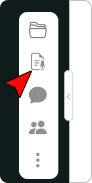
- On the Session Toolbar, click the Notes icon.
- In the Notes panel, click the Panel Tab.
- Click the AI Rough icon.
The AI Rough panel opens, appearing to the left of the Notes panel.
Add Notes
Add notes in the Notes panel to document key moments, observations, or action items during a Session. Notes created in the Notes panel are standalone entries. To attach notes to specific transcript segments, add them directly in the AI Rough panel. After the Session ends, your copy of transcript with your notes is available in Session Review.
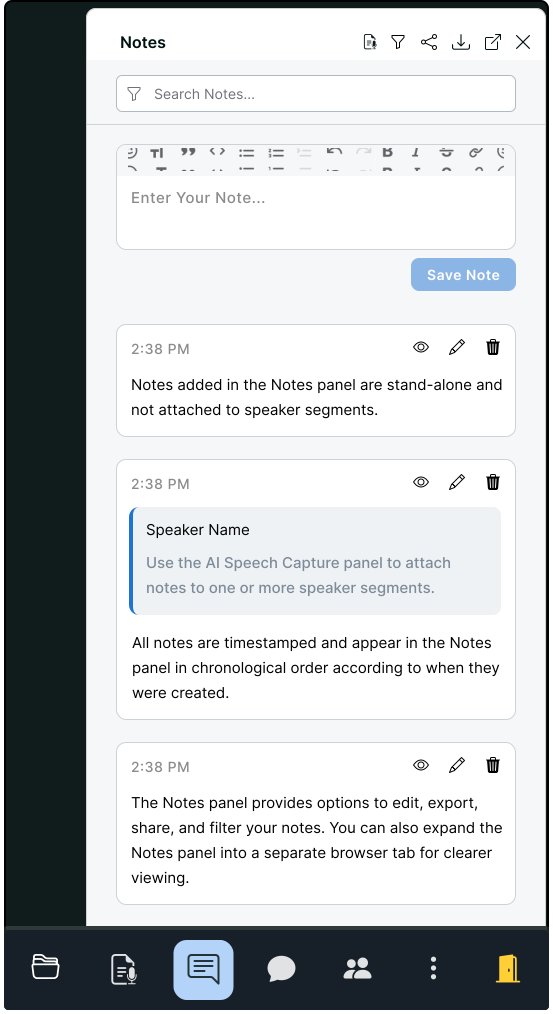
- On the Session Toolbar, click the Notes icon.
- In the Notes panel, in the Enter your note... box, type a note.
- Click Save Note.
You can also save a note by pressing Ctrl + Enter (Cmd + Enter on Mac) or by pressing Tab then Enter.
The note appears in the Notes panel.
Edit Notes
Existing notes can be edited, deleted, or hidden at any time using the panel options. Editing a note updates the text content but preserves the original timestamp. Deleted notes are permanently removed and cannot be recovered. A hidden note minimizes only in your Notes panel but remains visible to recipients if you’ve shared your notes. To restore a hidden note, click the eye icon.
- On the Session Toolbar, click the Notes icon.
- In the Notes panel, locate the note you want to edit.
- Click the Pencil icon.
The note expands and editing options appear.
- Edit the note.
- Click Save.
- Optional: To delete a note, click the Trashcan icon.
- Optional: To hide a note, click the Eye icon.
When you share notes, hidden notes appear for the recipient.
The hidden note is minimized in your Notes panel.
Search and Filter Notes
Search notes by keyword or use the filter options to display only notes you added. You can also filter to reveal all notes or hidden notes.
- On the Session Toolbar, click the Notes icon.
- To search notes, in the Search Notes... box, type a search term.
Matching results appear highlighted in yellow.
- To filter notes...
- On the top toolbar, click the Funnel icon.
- In the list, select a filtering option.
Export Notes
Download a Word document or text file of your notes at any time before the Session ends. If other participants have shared notes with you, those shared notes are also included in the export. The exported file includes each note separated by divider lines, with timestamps indicating when the note was created. Notes that are attached to transcript segments include the speaker’s name, segment timestamp, and the selected transcript text. Standalone notes include only the note text and creation timestamp.
- On the Session Toolbar, click the Notes icon.
- On the top toolbar, click the Download icon.
- Select a document format...
- To download a text file, click .txt.
- To download a Word document, click .docx.
The Word document or text file containing your notes is available from your Downloads folder.
Share Notes
Share notes with Organizations or individual members who are active Session participants. Select an access level to set read and write permissions when sharing.
Shared notes immediately appear in the recipient’s Notes panel and update in real time as you add notes. To view notes from other participants, they must share their notes with you. Participants can use the filter option to view only their own notes or all shared notes.
Access Level Permissions
Assign access level permissions to Organizations and Organization members for shared notes. Access levels assign specific read, write, and share permissions.
| Role | Permissions |
|---|---|
| Admin | Read and write access; share access |
| Standard | Read and write access |
| Observer | Read-only access |
Share With Organizations
Share notes with all members of a selected Organization using the Share option. To share with more than one Organization, complete the procedure for each additional Organization. Once an Organization is selected, assign read and write access for all members. After you share your notes, you can manage access by setting the read and write access level for each Organization.
- On the Session Toolbar, click the Notes icon.
- On the top toolbar, click the Share icon.
- On the Share tab, click Organizations.
The Select organization group displays a list of your Organizations.
- From the list of Organizations, click an Organization name.
- In the Select access level drop-down, select an access level.
- Click Share.
The notes are available to all members in the selected Organization.
Share With Organization Members
Share notes with individual members of your Organizations using the Share option. To share with more than one member, complete the procedure for each additional member. Once an Organization member is selected, assign read and write access for the member. After you share your notes, you can manage access by setting the read and write access level for each Organization.
- On the Session Toolbar, click the Notes icon.
- On the top toolbar, click the Share icon.
- On the Share tab, click People.
The Select people group displays a list of all members in your Organizations.
- From the list of members, click a member name.
- In the Select access level drop-down, select an access level.
- Click Share.
The notes are available to the selected Organization member.
Manage Access
Modify the read and write access level for Organizations and Organization members for shared notes at any time during a live Session.
- On the Session Toolbar, click the Notes icon.
- On the top toolbar, click the Share icon.
- Click the Manage Access tab.
- Manage access for entire Organizations...
- In the Organizations with access group, locate the Organization's name.
- In the Organization's row, click the Access level drop-down.
- Select an access level from the list.
- Manage access for Organization members...
- In the People with access group, locate the member's name.
- In the member's row, click the Access level drop-down.
- Select an access level from the list.
- Click Done.