Session Review Overview
Review the rough transcript, exhibits, and video and audio recordings of participants, presentations, and screenshares on the Session Review page. You can flag transcript sections, create video clips of individual participants or presentations, access CheckMate, and download Session materials. You can also place transcript orders and download final transcripts after orders are delivered. After a Session ends, you can access Session Review from the Sessions page.
Session Review is available by subscription or purchasing access for an individual Session. To learn more about accessing Session Review, please contact Customer Success at CustomerSuccess@prevail.ai.
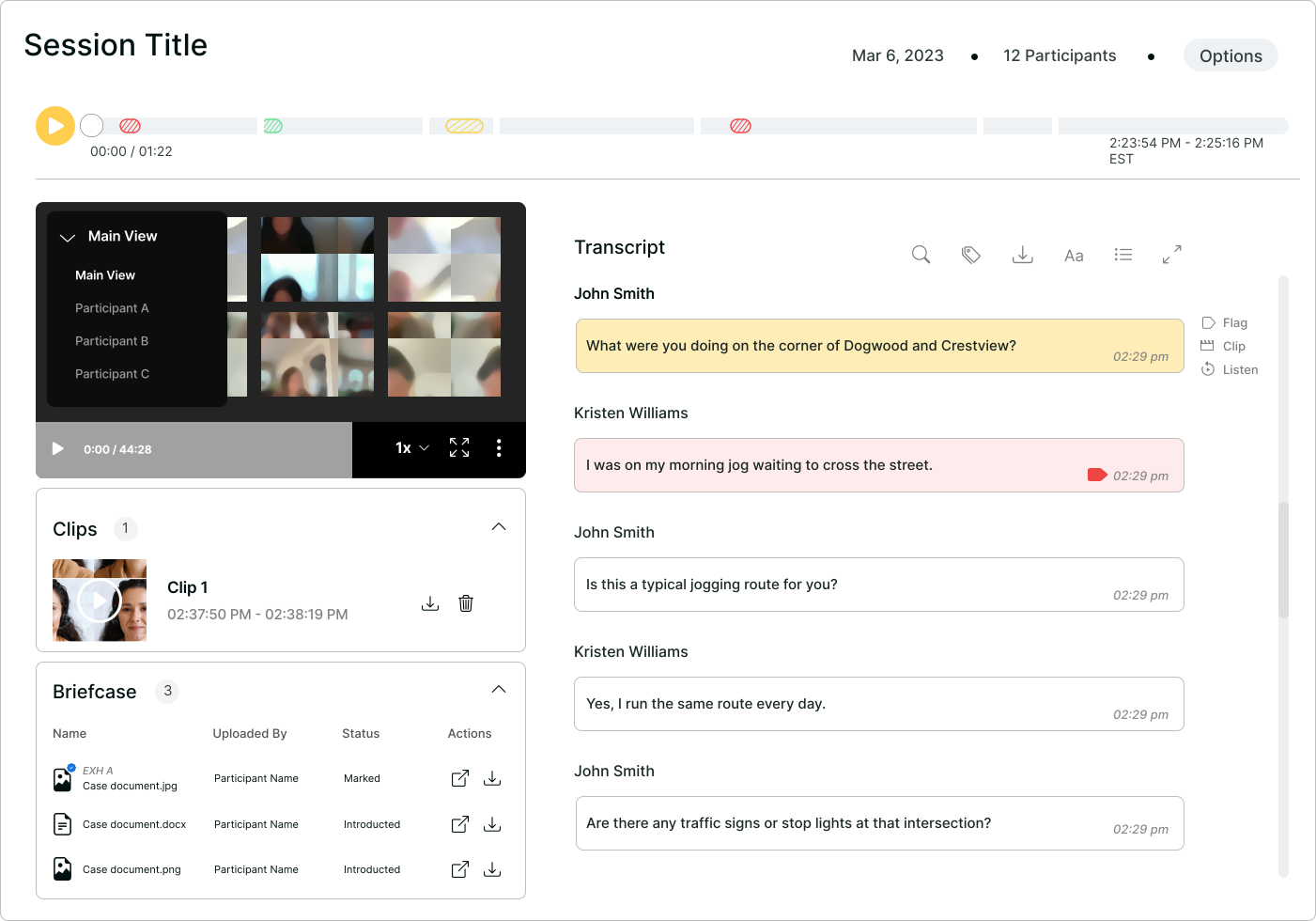
Access Session Review
Session Review is available to subscribing members from the Sessions page.
- Sign in to your Prevail account at Prevail.ai.
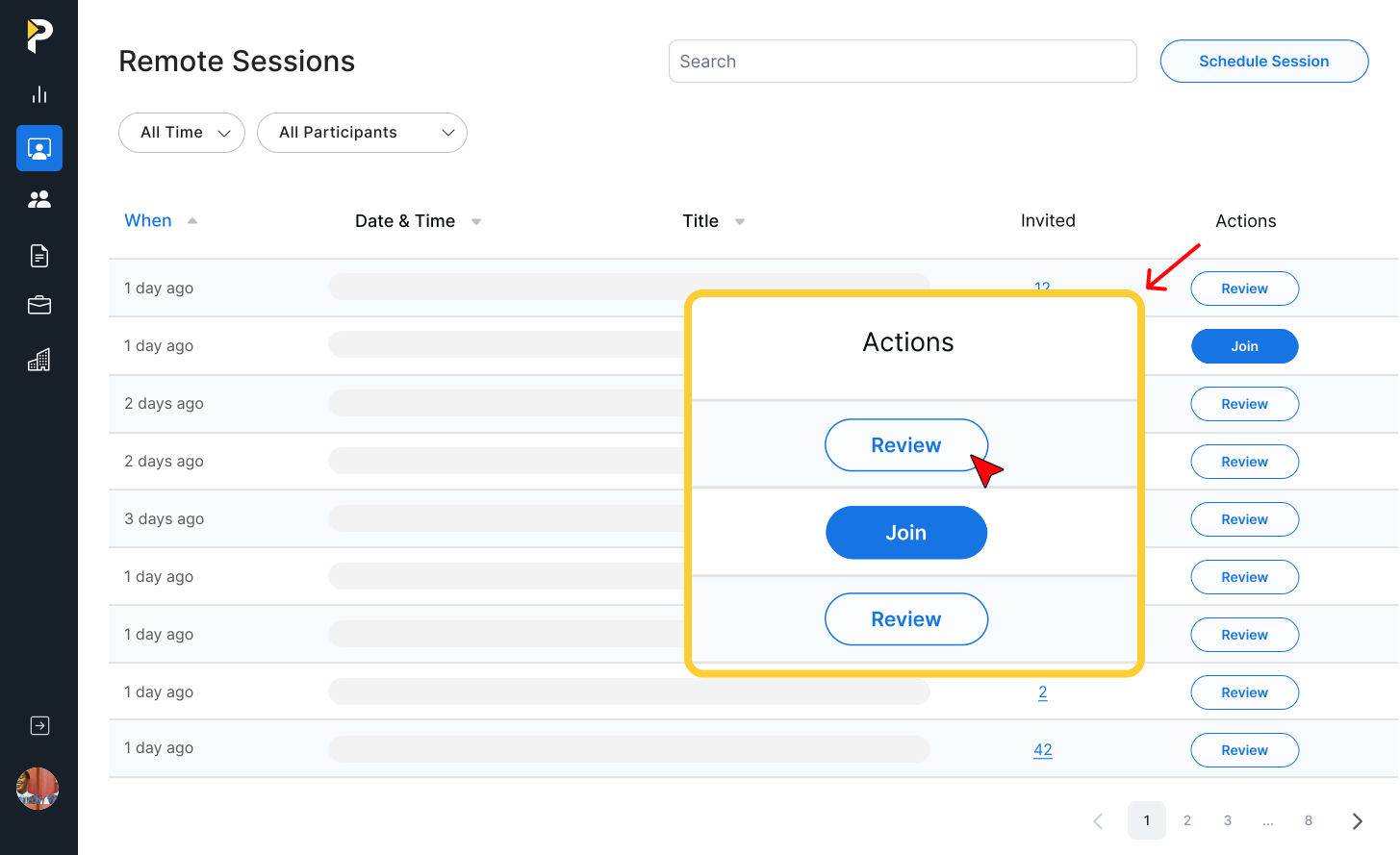
- On the Navigation menu, click Sessions.
- In the Actions column, click Review.
You are taken to the Session Review page.