Manage Transcript Notes
Add personal notes to the transcript, edit the notes you added during the Session, or use CheckMate to query connected AI models. You can export your notes in text format using the download feature. If you download the transcript, flags and notes are not included in the transcript copy.
View Only Notes
Use the Notes view to filter the transcript and display only timestamped notes. This view hides all other transcript content, allowing you to quickly review and navigate between notes.

- In the Transcript module, click the Note icon.
Add Notes
Add notes to your transcript copy or edit the notes you placed during a Session.
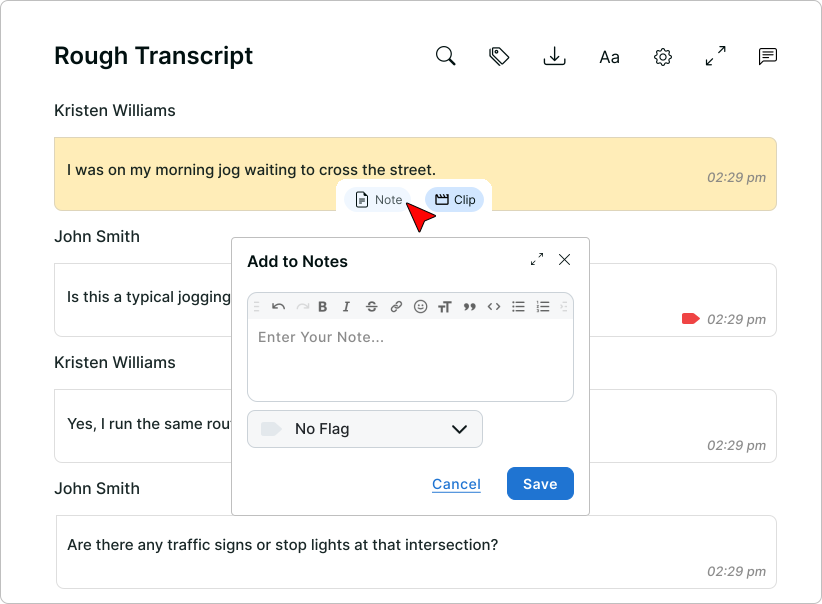
- In the Transcript module, select one or more speaker segments…
- To select a single segment, click on a speaker segment.
- Optional: To select a group of segments, click the first segment, then press and hold Shift as you click the last segment.
- Click Note.
The Add to Notes window opens.
- In the Enter Your Note... box, type a note.
- Click Save.
The note appears in the speaker segment as a Note icon.
Edit Notes
Edit individual transcript notes using the editing options.
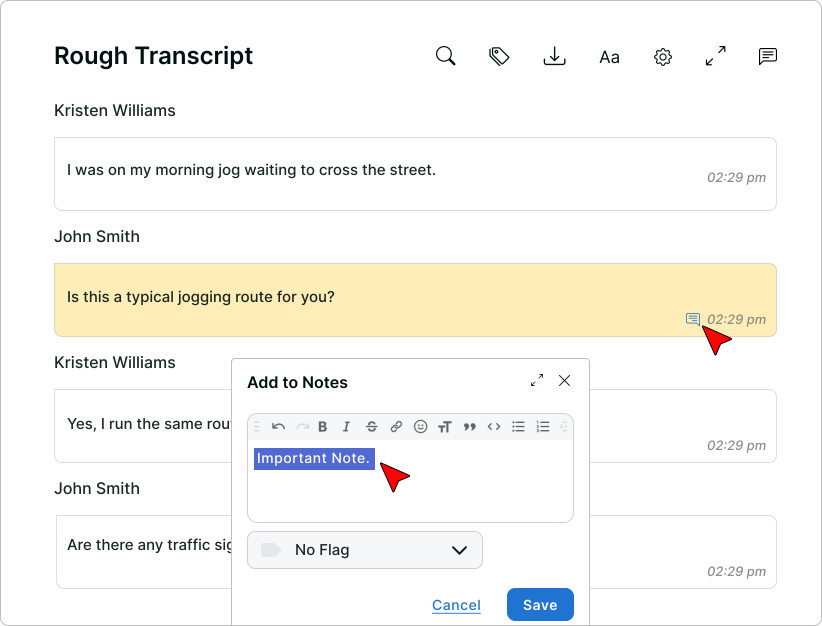
- In the Transcript module, click the Note icon in the speaker segment.
- To edit the Note text, select the text in the Note box and type a new comment.
- Optional: To add a new flag or change an existing flag style, click the Flag drop-down and select a flag option.
- Click Save.
Export Notes
Download a Word document or text file of your notes from the Notes view.
- In the Transcript module, click the Note icon.
- Click the Download icon.
- Select a document format...
- To download a text file, click .txt.
- To download a Word document, click .docx.
The Word document or text file containing your notes is available from your Downloads folder.
Ask AI
Use CheckMate to query a connected AI model from the Notes panel. Type @ followed by a connection name, enter your question, and save the note.
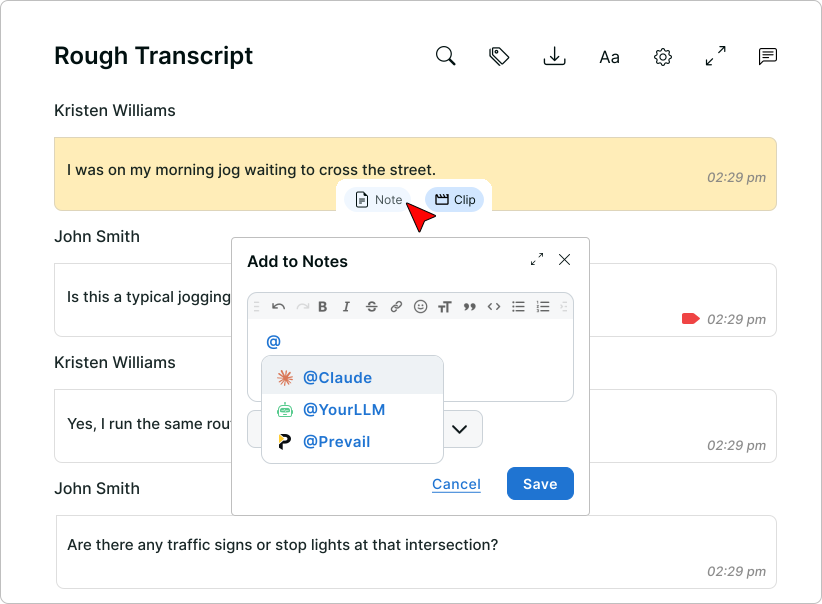
- In the Transcript module, select one or more speaker segments…
- To select a single segment, click on a speaker segment.
- Optional: To select a group of segments, click the first segment, then press and hold Shift as you click the last segment.
- Click Note.
The Add to Notes window opens.
- In the Enter your note... box, type the @ symbol.
A menu appears with your available connections.
- To select an AI model, click the connection name.
You can also use the Up Arrow and Down Arrow keys to move through AI model options, and press Enter to make a selection.
- Type a question, then click Save.
You can also save a note by pressing Ctrl + Enter (Cmd + Enter on Mac) or by pressing Tab then Enter.
- On the top toolbar, click the Note icon.
- To continue the conversation in CheckMate Chat, follow the Session instructions.